Managing Employee Time-Off & Availability Requests (Mobile)
Managers can now review, approve, and decline employee requests directly from the mobile app. This makes responding to availability and time-off changes faster and easier—no desktop required.
Accessing Requests
Open the Teamwork app.
Tap Time Off & Availability.
Tap Requests.
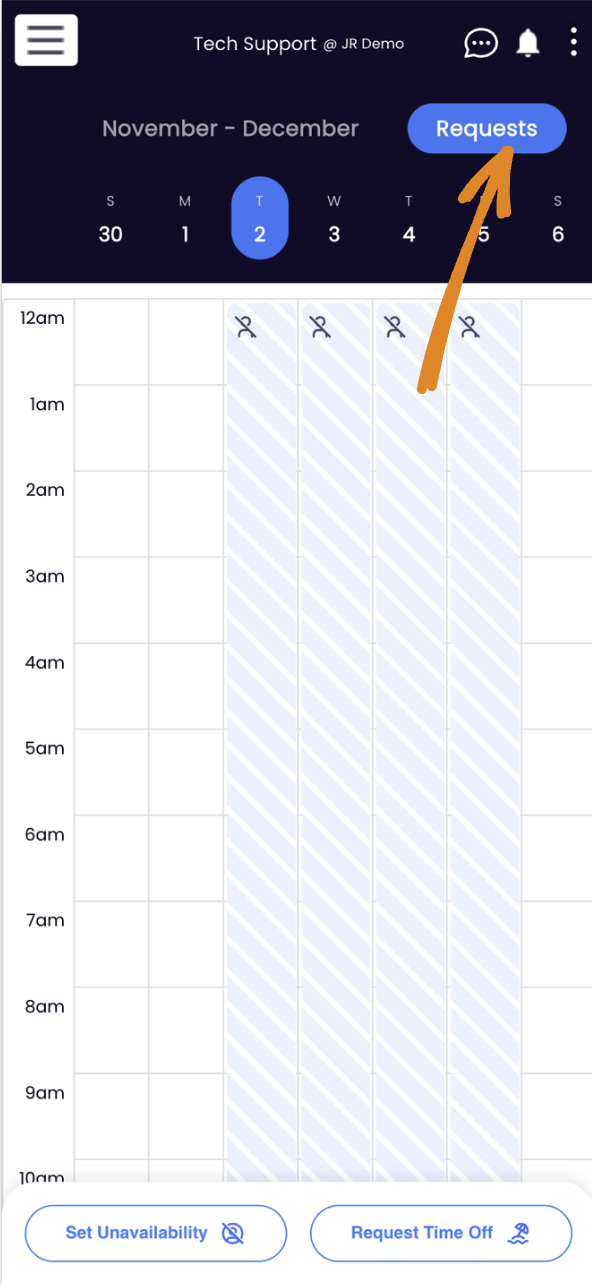
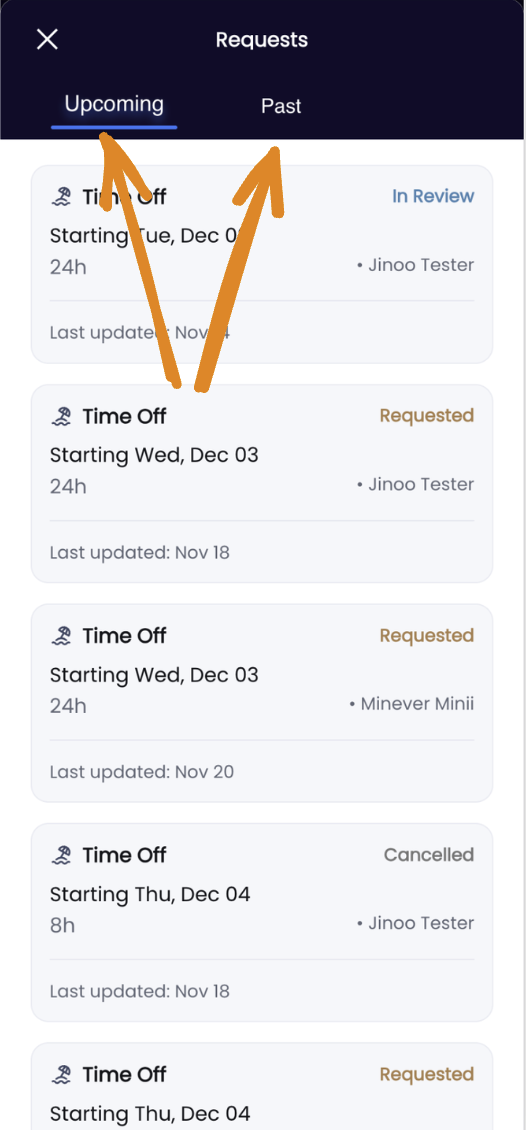
Managers will see all employee requests for the locations they manage.
Employees only see their own requests.Requests are grouped into:
Upcoming (anything dated today or later)
Past (anything dated before today)
Types of Requests
The mobile experience supports both request types:
Unavailability Requests
Recurring weekly availability preferences.
Example: “Unavailable every Monday from 2pm to 8pm starting Nov 24.”
Time-Off Requests
One-time exceptions to normal availability.
Example: “I need Dec 8–10 off” or “I need 2pm–5pm off on Friday.”
Reviewing a Request
Tap any request from the list.
You’ll see the employee’s details, dates, times, and comments (if provided).
Tap Manage Approval to take action.

Available Manager Actions
When managing a request, you’ll see the following options:
In Review – Marks the request as pending. (Rarely used but available.)
Approve – Confirms the request.
Deny – Declines the request. Optionally add a note.
Cancel – Cancels an already-approved request (when needed).
After selecting an action, tap Save Changes.
You’ll be returned to the request list once the update is submitted.
Editing Existing Requests
Managers can re-open any past decision and make changes as long as the start date isn't in the past.
For example:
Switch a denied request to approved
Update a pending request
Add or revise manager comments
Just tap the request → Manage Approval → choose a new status → Save Changes.
**Please note you can only edit an Upcoming request and any Past requests are memorialized.
What Managers See
From the main grid, managers will see:
Their own availability and time-off (just like employees)
All incoming employee requests in "Requests"
Real-time statuses reflecting any approvals, denials, or changes
Current Limitations
Filtering options are intentionally simple for now.
At this time, managers cannot filter by:
Only their own requests
Specific locations
Specific employees
More granular filtering is planned for a future update.
Related: How Employees Submit Requests
Employees can:
Set preferred minimum/maximum weekly hours
Block off unavailable days or time blocks
Submit one-time time-off requests
Add optional comments for their manager
Once submitted, managers are notified via app or email and can approve or deny the request. Employees are alerted when a decision is made.
Need Help?
If you have questions or feedback, we’re here to help.
Reach out to Support anytime as we continue improving the mobile management experience at support@spoton.com