Overview
Two-Way Messaging is a built-in communication feature in SpotOn Teamwork that allows managers, supervisors, and staff to send direct messages to each other without leaving the app. Whether you need to coordinate a last-minute shift change, check in with a team member, or communicate with your entire kitchen crew, Two-Way Messaging keeps all your work conversations in one secure, organized place.
Key Benefits
- No personal phone numbers required — Keep your personal contact information private while staying connected with your team
- All work communication in one place — No more scattered text threads, group chats, or missed messages across multiple apps
- Real-time notifications — Receive push notifications on your mobile device so you never miss an important message
- Works on any device — Access your messages from desktop, tablet, or mobile with a consistent, responsive experience
- Built-in safety features — Report inappropriate messages and block users to maintain a professional, respectful workplace
Disabling Two-Way Messaging
If your location would like to disable the Two-Way Messaging feature, please contact teamworksupport@spoton.com to request this change.
Getting Started
Accessing Two-Way Messaging
Once Two-Way Messaging is enabled for your location, you'll see a new messaging icon in the top navigation toolbar, located next to the gear (settings) icon.

On Desktop: Click the messaging icon in the top right corner of your Teamwork dashboard.
On Mobile: Tap the messaging icon in the top navigation bar of the Teamwork app.
Understanding the Messaging Interface
When you open Two-Way Messaging, you'll see three tabs:
- Direct — Your one-on-one and group message threads
- Channels — Coming soon: Pre-configured groups based on role, department, or location
- Announcements — Coming soon: One-way broadcast messages (currently accessible via the envelope icon)
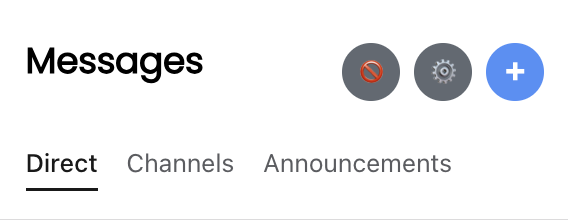
Note: The Channels and Announcements tabs display a "coming soon" indicator and will be available in a future release.
Sending Messages
Starting a New Conversation
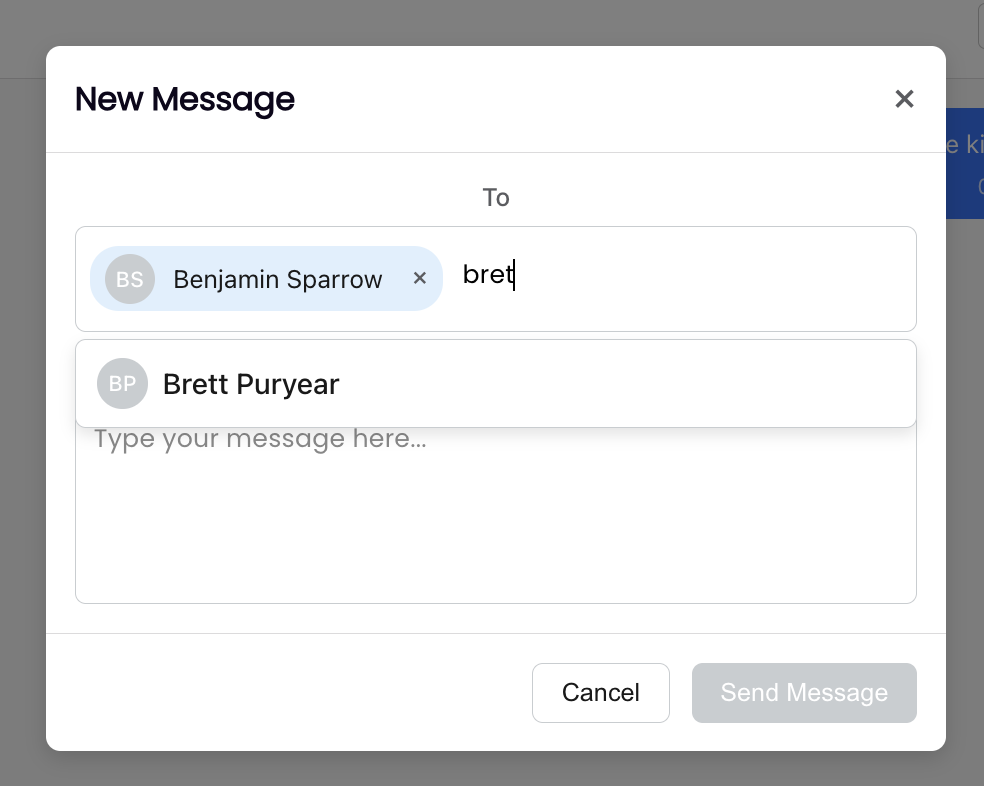
- Click or tap the + (plus) button in the messaging panel
- Search for the employee(s) you want to message by typing their name
- Select one or more recipients from the search results
- Type your message in the text field
- Press Send to deliver your message
Tip: You can add multiple people to a single conversation to create a group thread. For example, select your entire kitchen team to coordinate shift coverage all at once.
Replying to Messages
When someone sends you a message:
- You'll receive a push notification on your mobile device (if notifications are enabled)
- Open the messaging panel to see your unread threads (highlighted for easy identification)
- Click or tap on the conversation to open it
- Type your reply and press Send
Group Conversations
Creating Group Messages
When you add two or more recipients to a conversation, it automatically becomes a group thread. This is perfect for coordinating with specific teams or groups of employees.
Important: The system prevents duplicate conversations with the same participants. If you've already messaged the same group of people, you'll be directed to your existing thread rather than creating a new one.
Naming Group Conversations
To make it easier to find and organize your group conversations, you can give them custom names:
- Open the group conversation you want to rename
- Look for the option to change the group name (visible in the thread header or details)
- Enter a descriptive name (e.g., "Kitchen Crew", "Saturday Shift", "Management Team")
- Save your changes
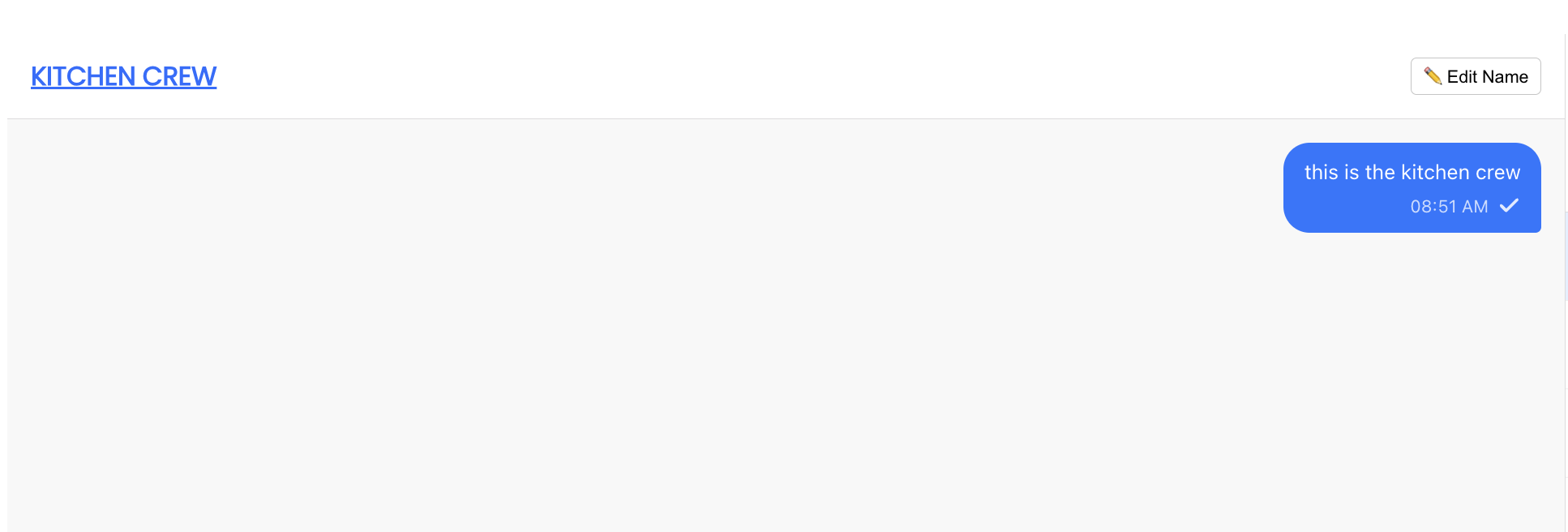
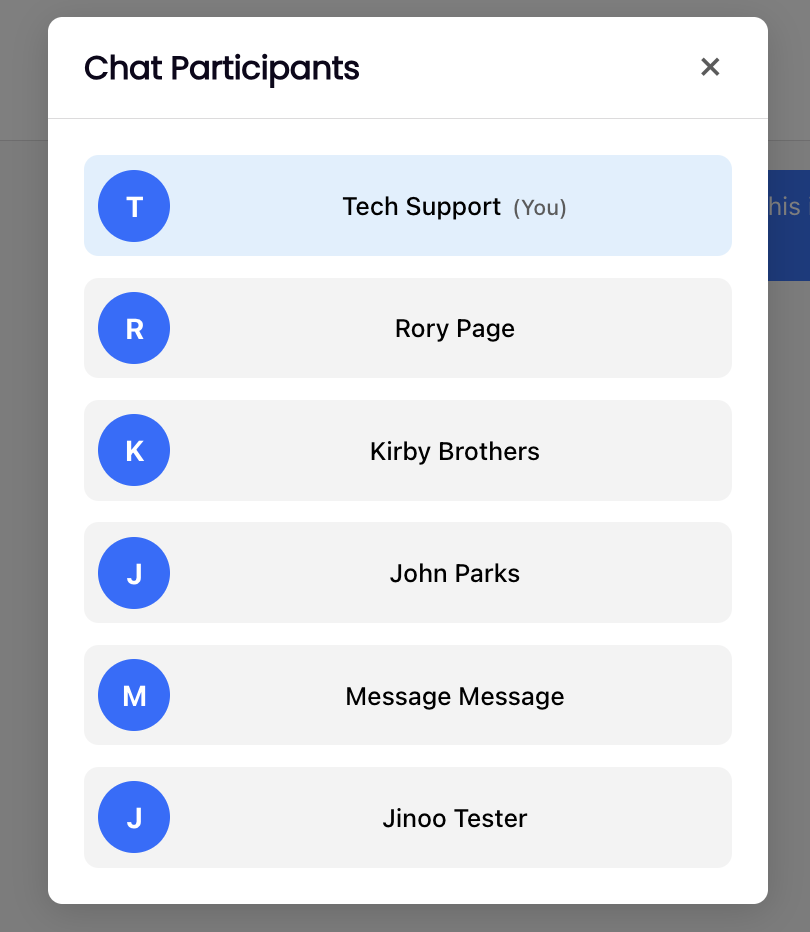
Once named, your group will display its custom name in your message list, making it easy to identify at a glance. You can still see the full list of participants by viewing the thread details.
Notifications
Push Notifications
Two-Way Messaging sends push notifications to your mobile device when you receive a new message. These notifications include:
- The sender's name or group name
- A preview of the message content
- The message type (DM, Group, or Announcement)
Tapping the notification opens the Teamwork app directly to that conversation.
Unread Message Indicators
Threads with unread messages are highlighted in your message list so you can quickly see which conversations need your attention. The unread indicator clears once you open and view the thread.
Safety Features
SpotOn Teamwork is committed to maintaining a safe, professional communication environment. Two-Way Messaging includes built-in content moderation tools to help protect all users.
Reporting a Message
If you receive a message that violates workplace standards or makes you uncomfortable, you can report it:
- Long-press (mobile) or click the menu icon on the message you want to report
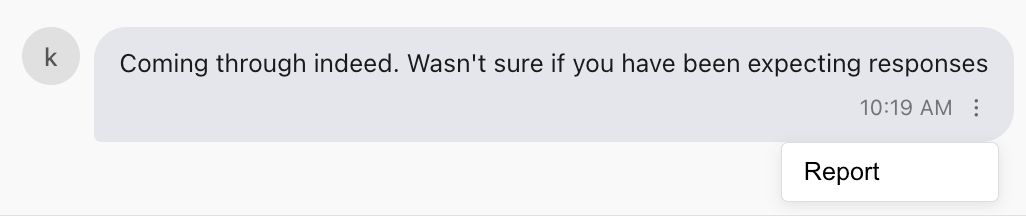
- Select Report Message
- Choose a reason for your report:
- Harassment or bullying
- Inappropriate content
- Spam
- Other (with option to add details)
- Optionally add additional context to explain your concern
- Submit your report
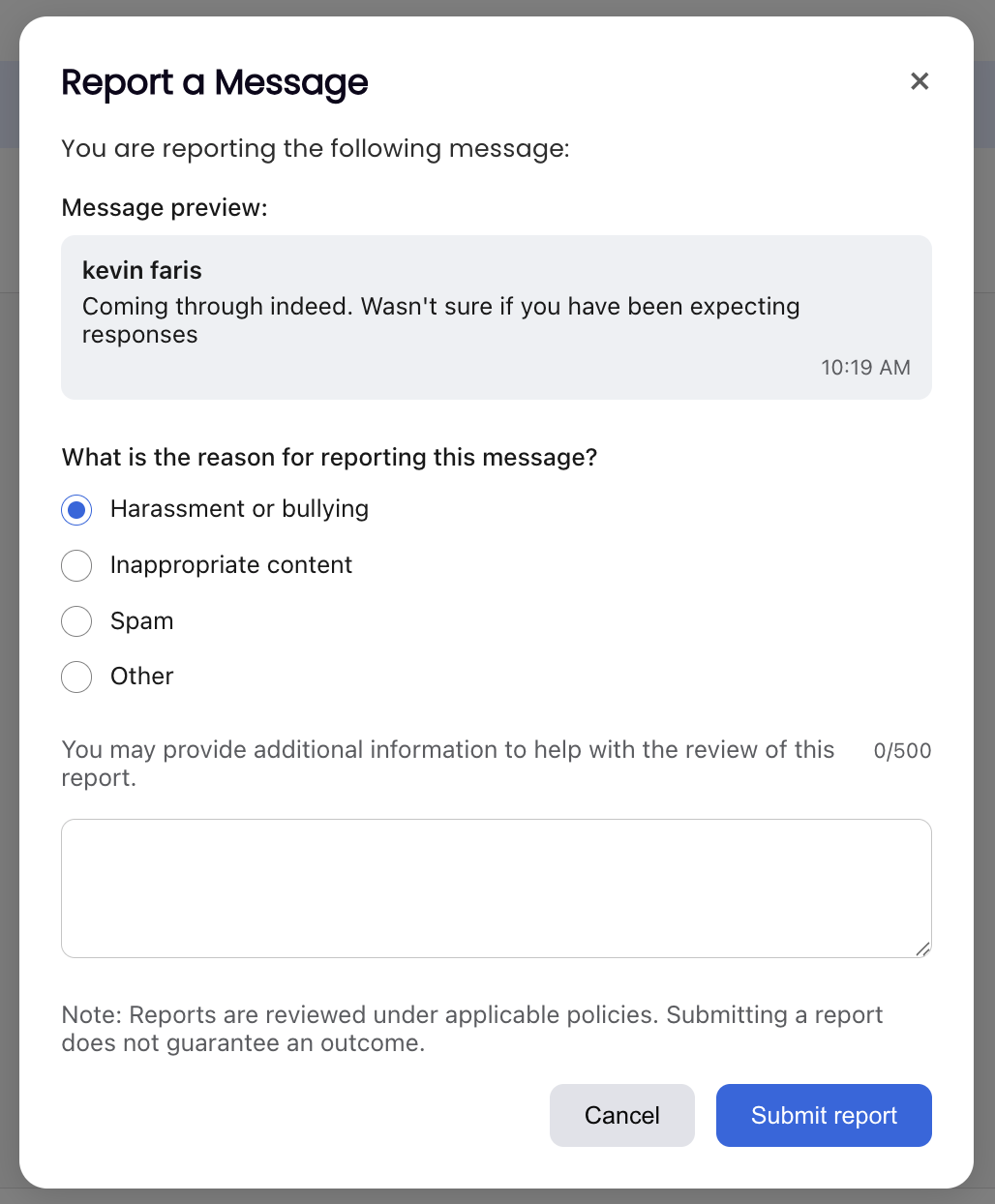
You'll see a confirmation that your report has been submitted. Reported messages are reviewed by your company administrators, and you'll see an indicator on the message showing it has been reported.
Blocking a User
If you no longer wish to receive messages from a specific person, you can block them:
- Navigate to a message from the user you want to block
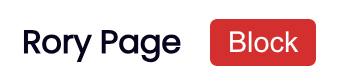
- Select the Block User option
- Confirm your decision when prompted
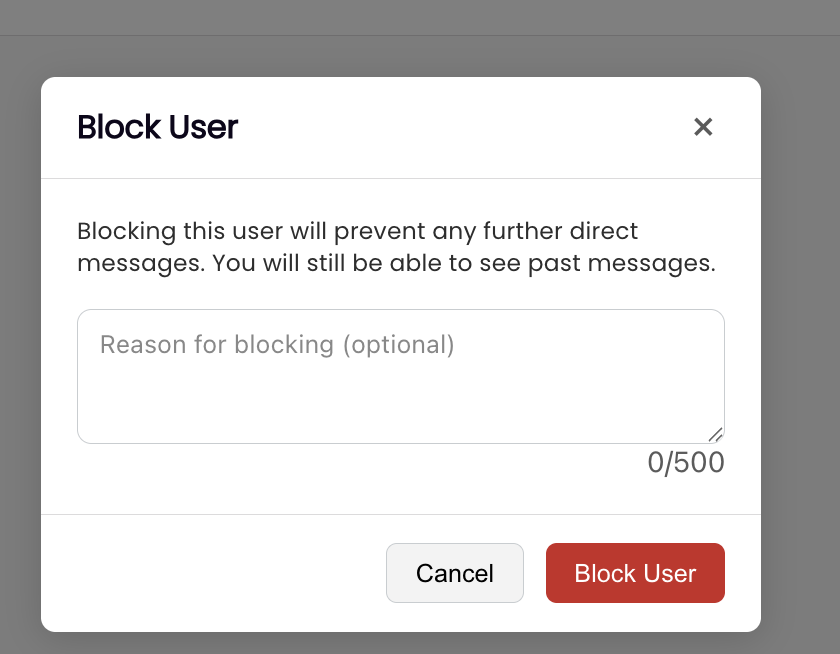
What happens when you block someone:
- They will no longer be able to send you direct messages
- You can still see your past message history with them
- You can unblock them at any time if you change your mind
Unblocking a User
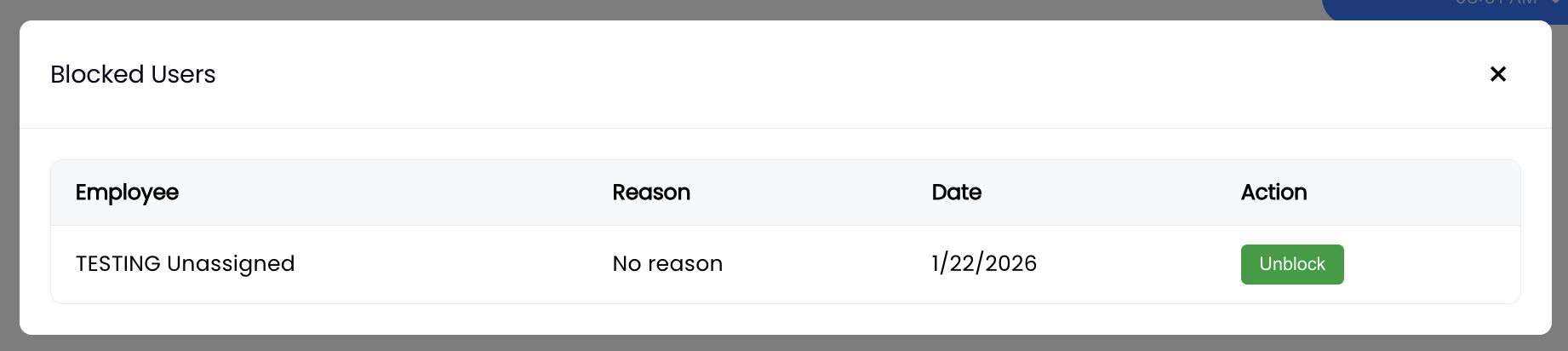
To unblock someone you've previously blocked:
- Go to your blocked users list (in Settings)
- Find the user you want to unblock
- Tap or click to unblock them
For Administrators
Company administrators have access to additional tools to help maintain a safe and professional messaging environment.
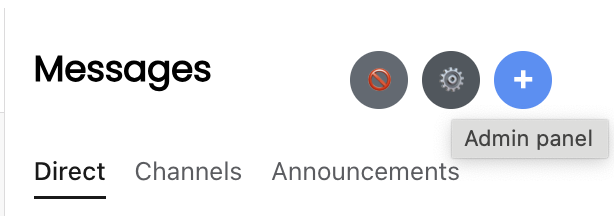
Accessing the Admin Panel
- Click the gear (settings) icon in the top navigation
- Navigate to the Two-Way Messaging admin section
- Here you'll find tools to review reports and monitor blocks
Reviewing Message Reports
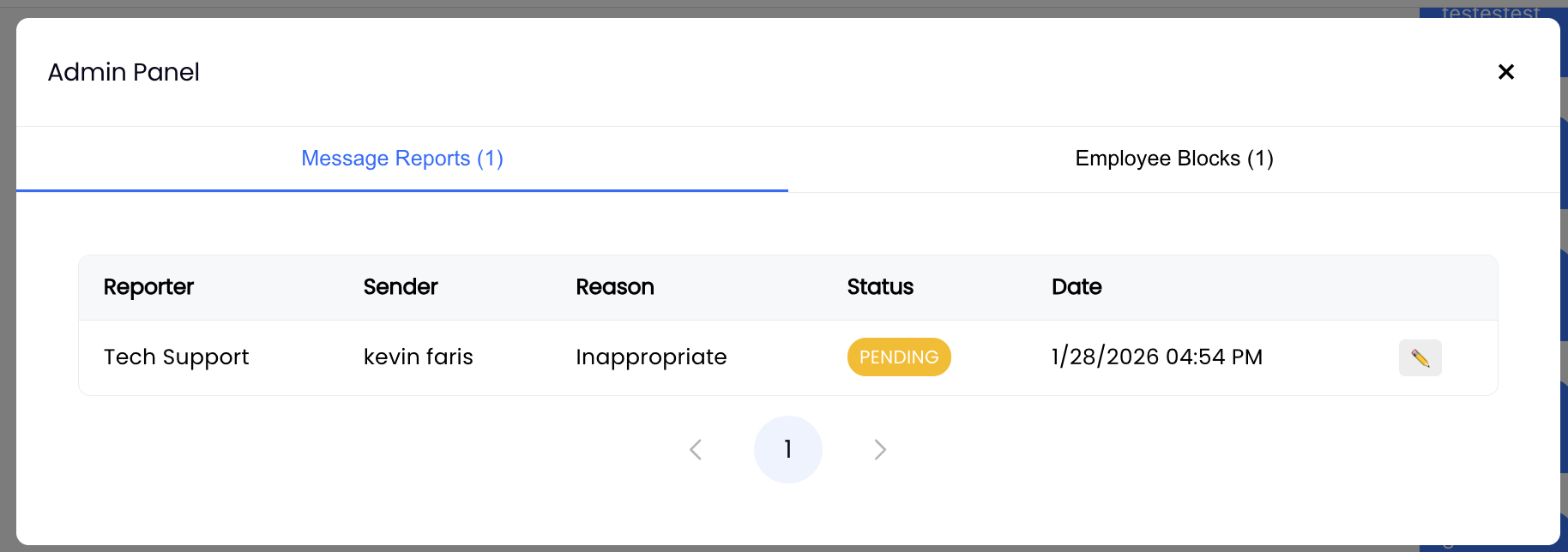
The admin panel displays a list of all reported messages with the following information:
- Status — Pending, Dismissed, or Resolved
- Reason — The category selected by the reporter
- Message preview — The content of the reported message
- Additional context — Any notes provided by the reporter
Actions you can take:
- Dismiss — If the report doesn't warrant action
- Resolve — Mark as handled after taking appropriate action
- Add notes — Document your review for other administrators
- Delete - Delete the offensive message
Monitoring Employee Blocks
Administrators can view a list of all employee blocks in the admin panel. While no action is required for blocks (they happen automatically when an employee chooses to block someone), this visibility allows administrators to identify potential workplace issues that may need attention or intervention.
Quick Reference
| Action | How To |
|---|---|
| Access Messaging | Click/tap messaging icon in top navigation |
| Start New Conversation | Click + button → Search for recipient(s) → Type message → Send |
| Name a Group | Open group thread → Edit group name → Save |
| Report a Message | Long-press/click message → Report Message → Select reason → Submit |
| Block a User | Navigate to their message → Block User → Confirm |
| Unblock a User | Settings → Blocked Users → Select user → Unblock |
| Admin: Review Reports | Gear icon → Two-Way Messaging Admin → Message Reports |
Frequently Asked Questions
Who can I message?
You can message any employee at your location(s) who has access to Teamwork. Managers can message staff, staff can message each other, and staff can initiate conversations with managers. The feature is designed to keep all work-related communication accessible to everyone on the team.
Will I need to share my personal phone number?
No. Two-Way Messaging works entirely within the Teamwork app, so you can communicate with your team without exchanging personal contact information.
Can I message multiple people at once?
Yes! When starting a new conversation, simply select multiple recipients to create a group thread. You can also name the group for easy reference.
What happens when I block someone?
When you block a user, they can no longer send you direct messages. You'll still be able to see your past conversation history, and you can unblock them at any time. Blocking does not affect scheduled shifts or other Teamwork functionality.
Can my employer see my messages?
Administrators have access to review reported messages as part of the content moderation process. Regular message content is not monitored unless a report is filed.
Why can't I create a new thread with someone I've already messaged?
To keep conversations organized, the system prevents duplicate threads with the same participants. If you've already messaged someone (or a specific group of people), you'll be directed to your existing conversation.
What are Channels and Announcements?
These features are coming soon. Channels will provide pre-configured group conversations based on roles, departments, or locations. Announcements will allow managers to send one-way broadcast messages to teams. In the meantime, you can use the existing Announcements feature via the envelope icon.
Need Help?
If you encounter any issues with Two-Way Messaging or have questions not covered in this guide, please contact your manager or reach out to SpotOn Support for assistance.